This article will cover setting up your mailbox on the Samsung default mail application (Samsung Mail).
Before proceeding, please note the following:
i.)This article follows the configuration of Samsung Mail, however, the settings used are universal and can be applied to your mail application of choice.
ii.)The below is a POP3 configuration, for details on the difference between IMAP and POP see IMAPvsPOP.
The steps are as follows:
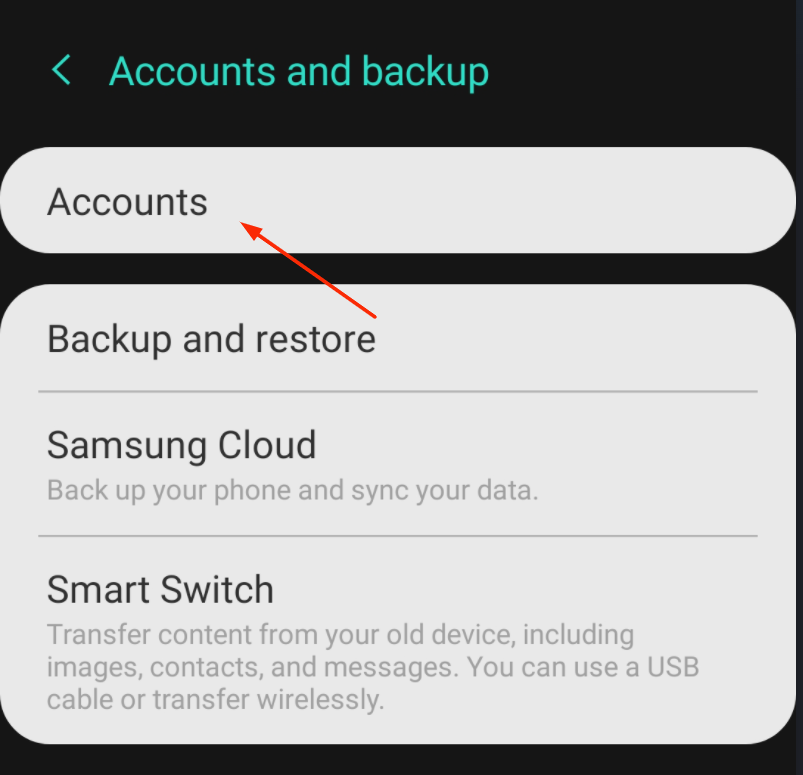
1.) Go to your device settings
2.) Locate and select the "Accounts" feature
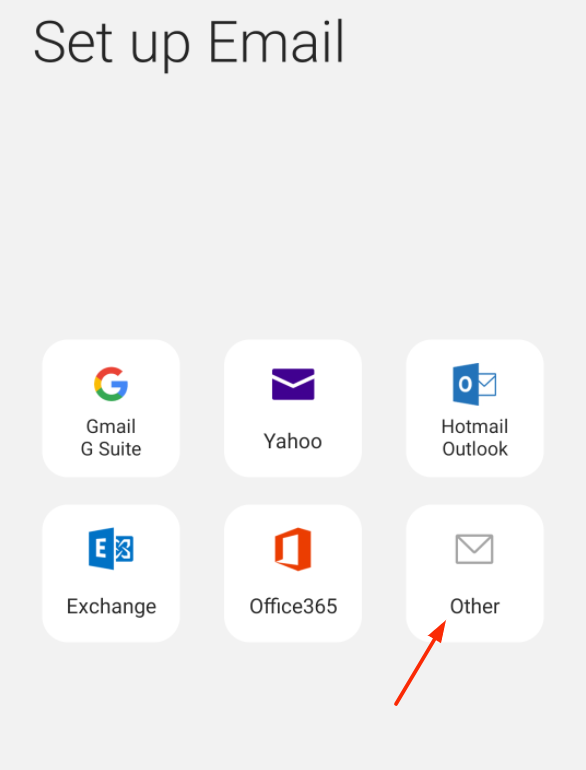
3.) Select Account type as Email

4.) Choose your Email type as Other
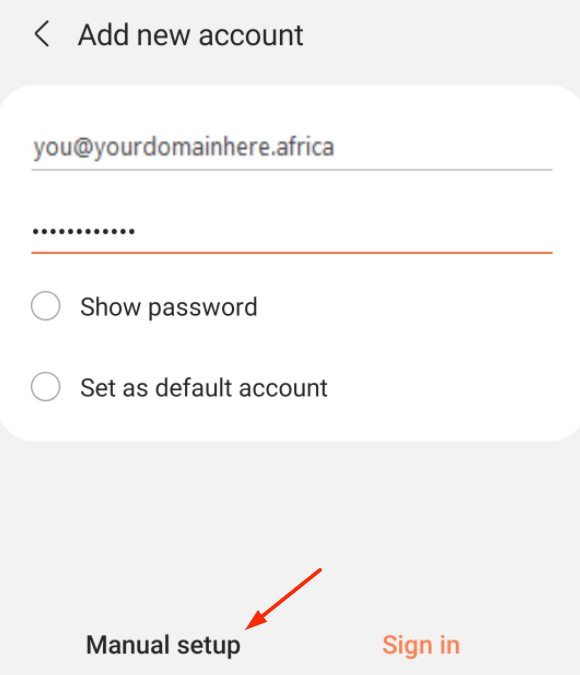
5.) On the "Add New Account" window
Enter your email address, password and then select "Manual Setup".
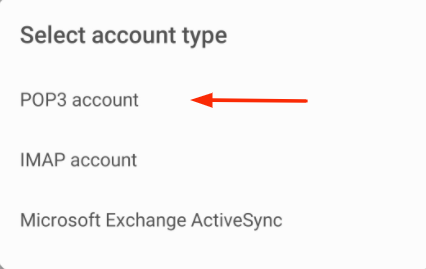
6.) Set account type as "POP3"
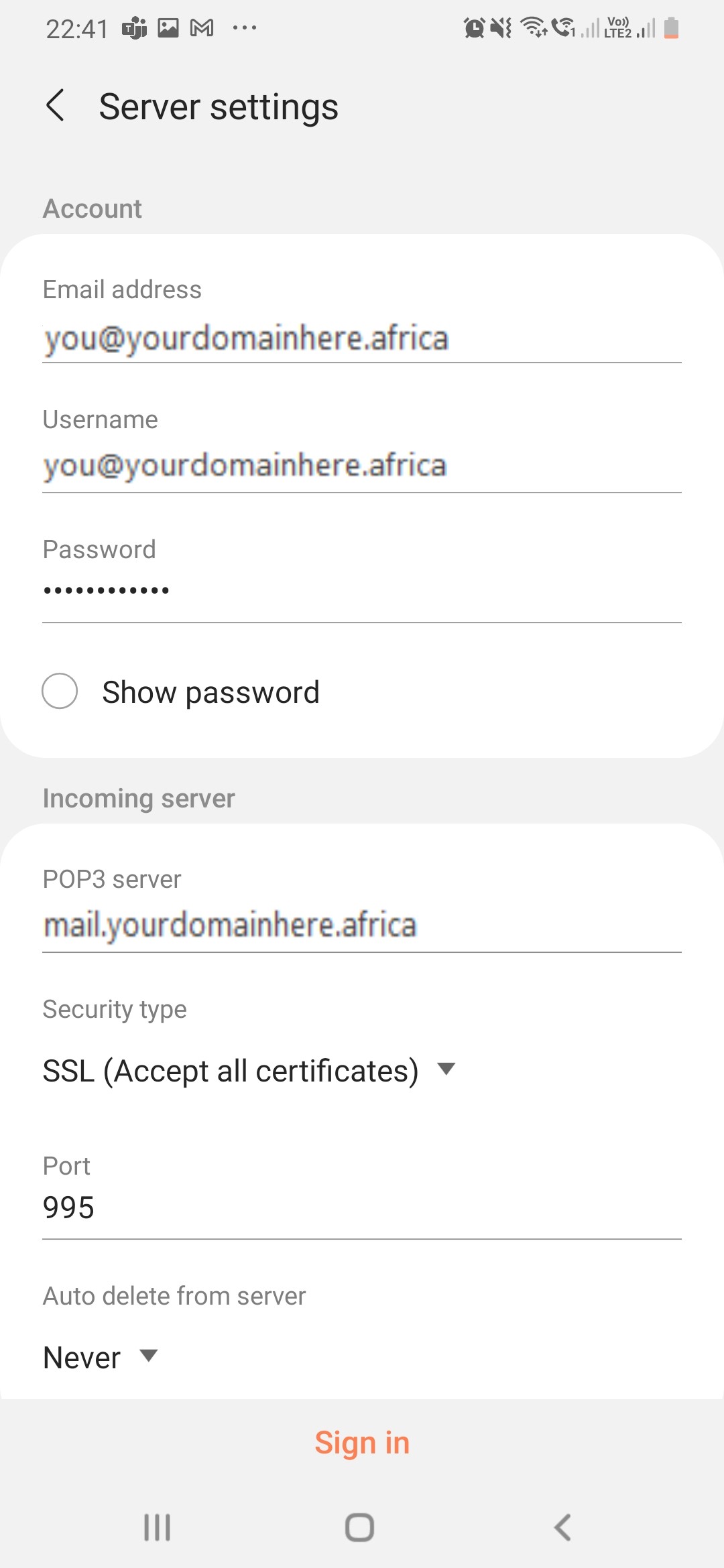
7.) Replicate the following incoming mail server settings
Incoming:
Mail server: mail.yourdomainhere.africa
Port: 995
SSL encryption: SSL (Accept all certificates)
Username: Full Email Address
Password: ********
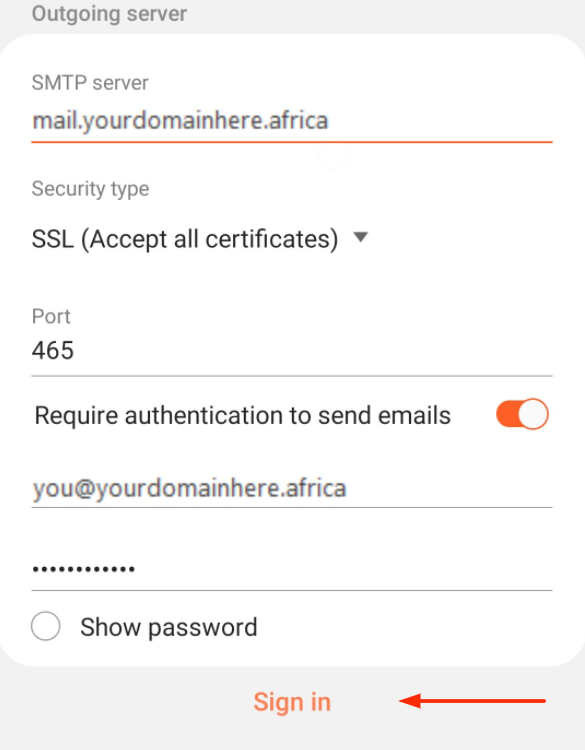
8.) Replicate the following outgoing mail server settings
Outgoing:
Mail server: mail.yourdomainhere.africa
Port: 465
SSL encryption: SSL (Accept all certificates)
Username: Full Email Address
Password: ******
Lastly, select "Sign in"