This article will guide you through setting up your custom domain mailbox on a Mac PC.
Please be aware this article will follow an IMAP setup, for further information on the differences between IMAP and POP see IMAPvsPOP.
The steps are as follows:
1.) Open Mac Mail on the local PC

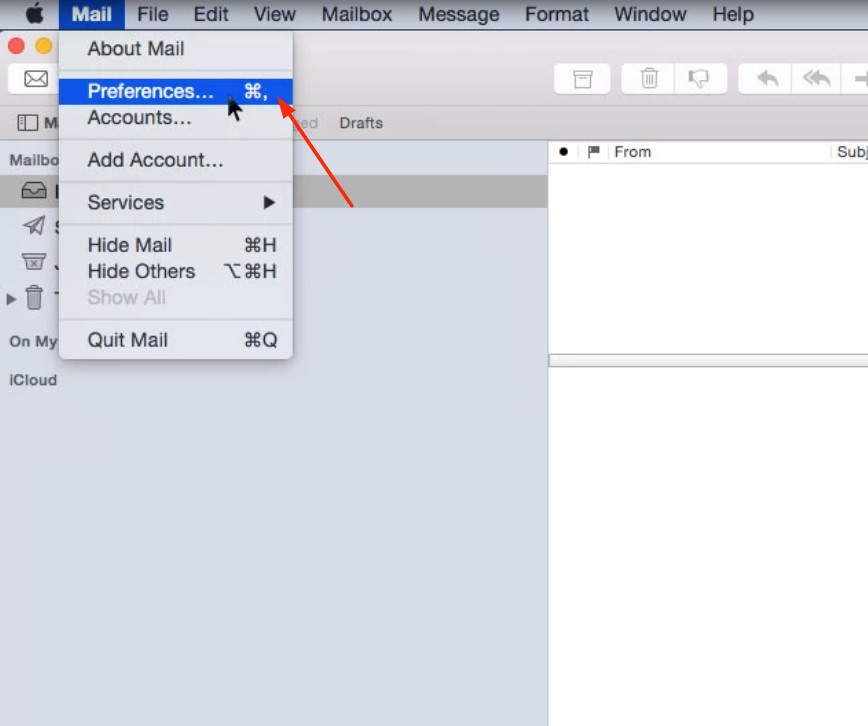
2.) Select "Mail" on the top left-hand corner of your screen and choose "Preferences" from the dropdown list.
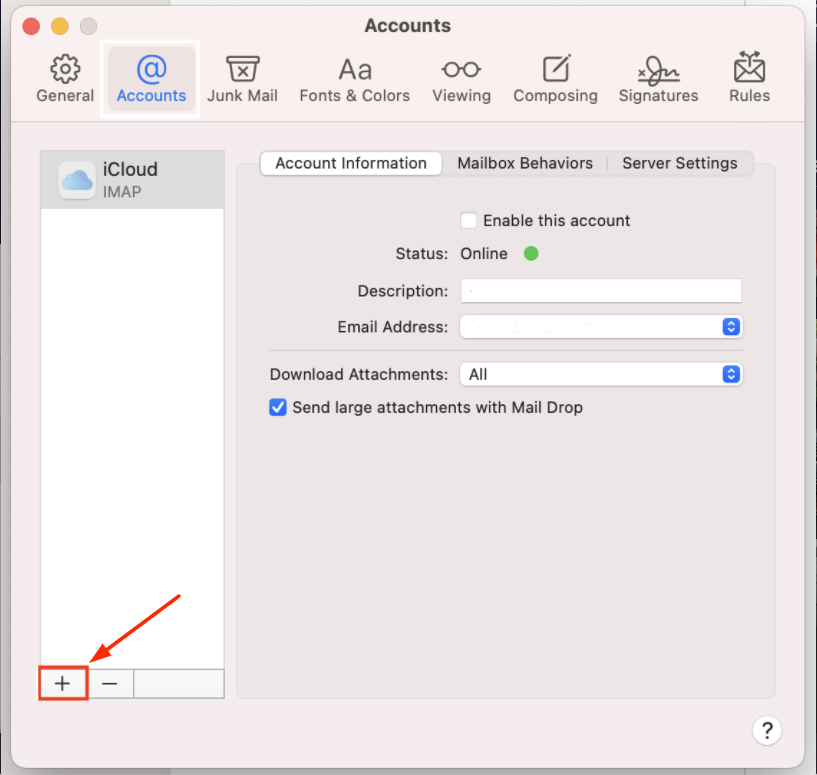
3.) Select the plus emblem to the bottom left corner of the new window
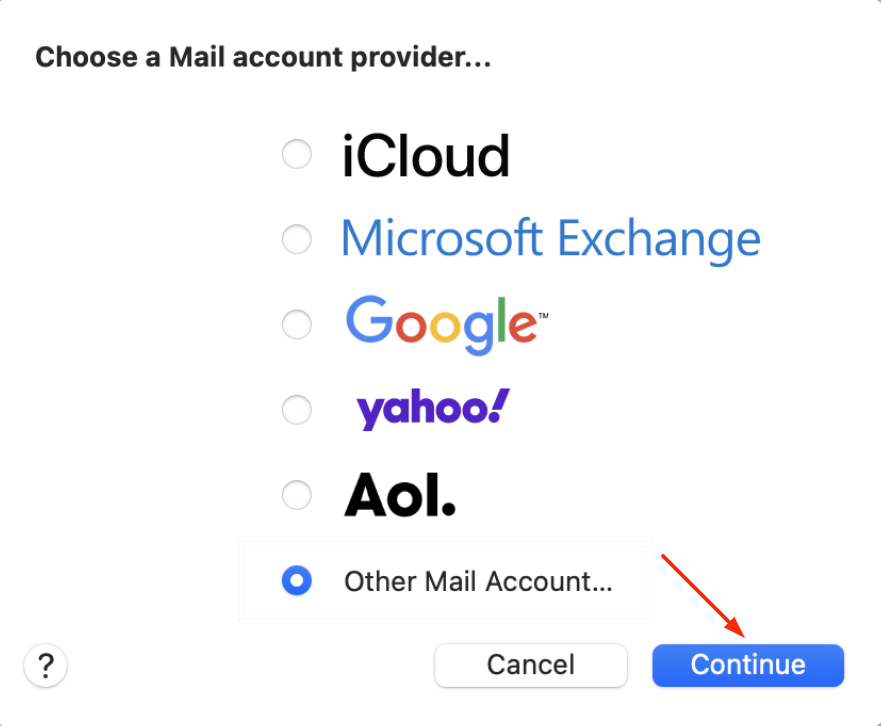
4.) On the "Choose a Mail account provider" screen select "Other Mail Account"
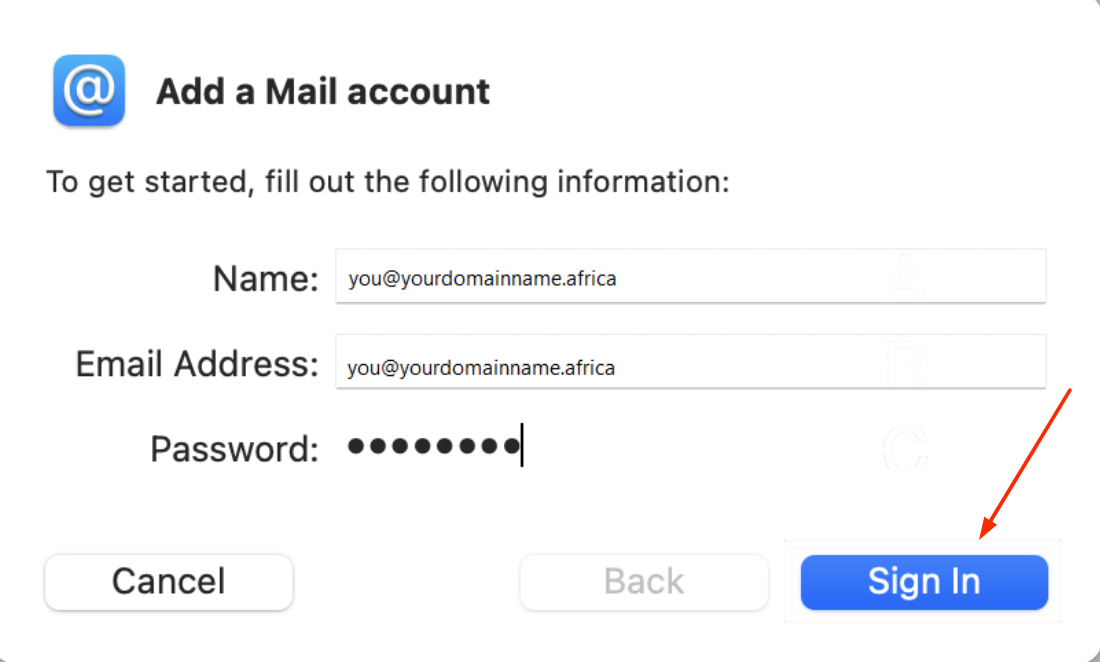
5.) On the "Add a Mail Account" window specify the following:
i.)Name - you@yourdomainhere.africa
ii.)Email Address - you@yourdomainhere.africa
iii.)Password - ********
Click on "Sign in"
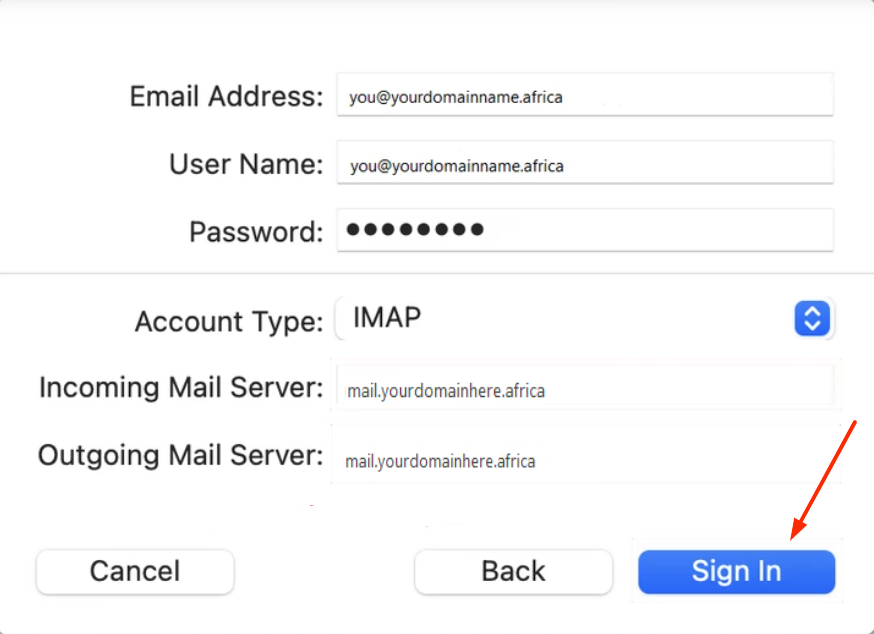
6.) Mimic the following server settings
i.)Account type - IMAP
ii.)Incoming mail server - mail.yourdomainhere.africa
iii.)Outgoing mail server - mail.yourdomainhere.africa
Lastly, select "Sign in"
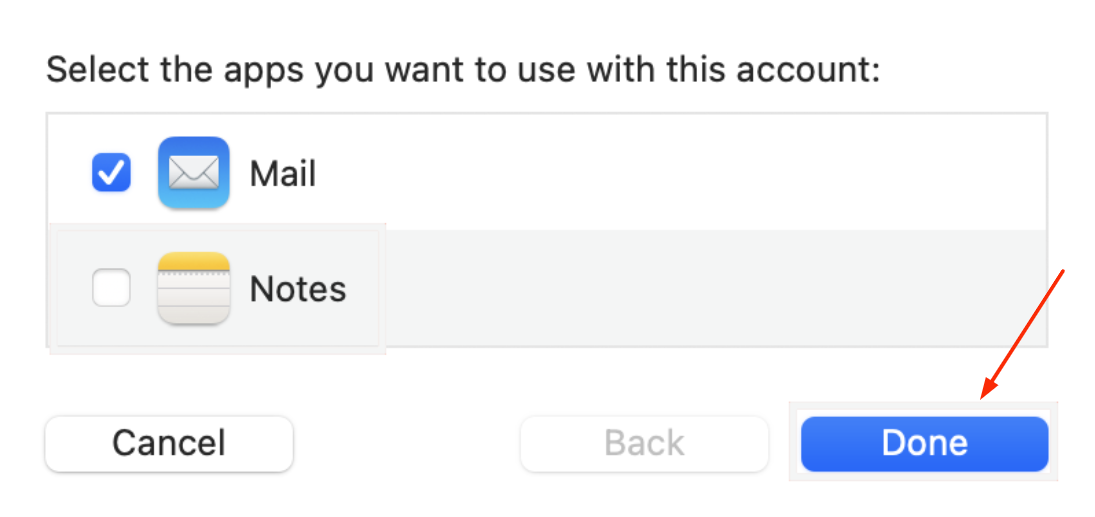
7.) Lastly select "Done"