
Below we will guide you on how to add your custom email address to the Outlook mobile app.
Please note the below follows an IMAP setup which is recommended for mobile devices, for differences between IMAP and POP3 please see IMAPvsPOP.
See instructions below:
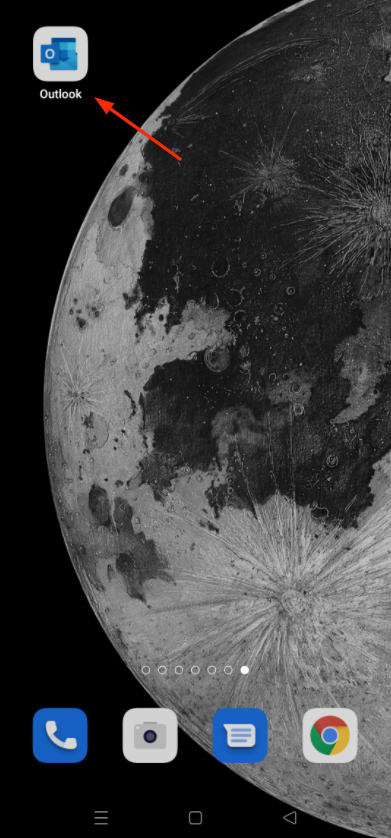
1.) Open Outlook on your smartphone
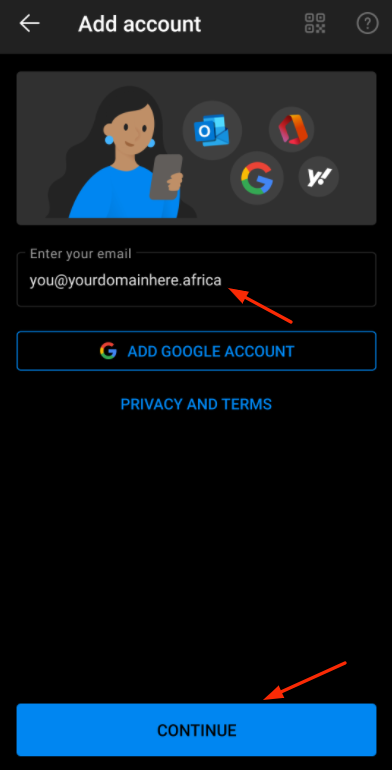
2.) On the "Add Account" screen enter your email address and select "Continue"
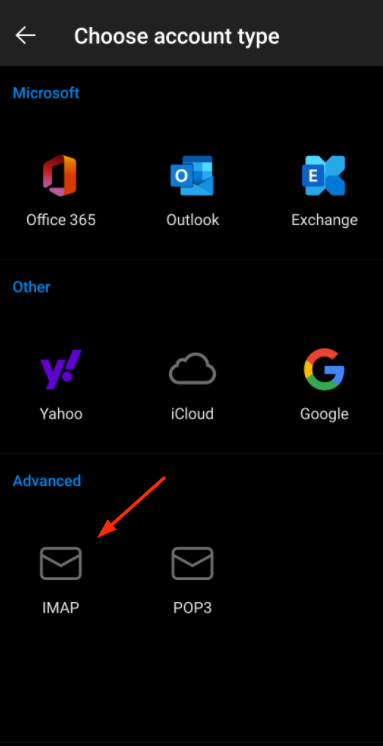
3.) On the "Choose account type" page choose "IMAP"
3.) Enter your password and enable "Advanced settings"
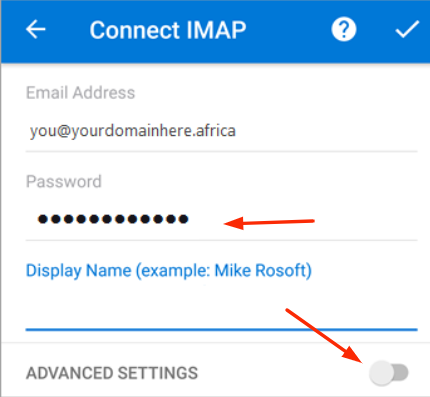
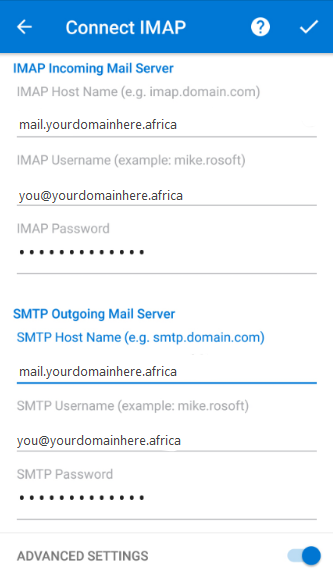
4.) Replicate the following settings
Incoming Mail Server:
IMAP Hostname: mail.yourdomainhere.africa
IMAP Username: Full Email Address
IMAP Password: ********
The following info may also be required:
i.) Security Type: SSL/TLS
ii.) Port: 993
Outgoing Mail Server :
SMTP Hostname: mail.yourdomainhere.africa
SMTP Username: Full Email Address
SMTP Password: ********
The following info may also be required:
i.) Security Type: SSL/TLS
ii.) Port: 465
6.) Select "Done"

